September 2026 Updates
(Set for Deployment on September 17, 2026)
Highlights include:
"Preview as Student" Removed from Content Tool
The Preview as Student option within the Content tool is being removed because it did not accurately reflect the student experience. For example, it did not properly display availability dates or activities such as assignments, quizzes, and discussions. Instructors should continue using View as Student, which provides a more complete student perspective across the course.

Faster Group Name Editing
Instructors using the new Manage Groups experience can now rename multiple groups within a category from a single page. A new Edit Group Names button allows bulk editing of group names, reducing the need to open and edit each group individually. This feature streamlines group management and saves time.


New Heading 5 and Heading 6 options in the HTML Editor
The Brightspace HTML editor now supports Heading 5 and Heading 6 styles in addition to Headings 1 through 4. This enhancement benefits instructors creating longer content pages, syllabi, announcements, or activity descriptions that require more detailed heading structures and improved accessibility.

Self-Assessment Tool Retirement Timeline
D2L announced the gradual retirement of the Self Assessment tool due to low usage and the availability of similar functionality in Quizzes.
Important dates:
- September 2026: Instructors see a notification banner about the tool's retirement.
- December 2026: Tool is disabled by default but can still be re-enabled.
- January 2027: Creation of new self-assessments will no longer be allowed.
- May 2027: Tool is fully turned off and self-assessments can no longer be copied to other courses.
- December 2027: Self-assessment content will be permanently removed.
Instructors currently using self-assessments are encouraged to begin migrating content to the Quizzes tool. D2L plans to provide migration options to support this transition.

August 2026 Updates
Highlights include:
Quizzes – Improved filter and source dropdowns in Question Library | Updated
This update improves the source and filter dropdowns in the Browse Existing Questions dialog to better align with Brightspace standards and provide a more consistent experience.
Both dropdowns now include a search option, helping instructors find sources and filters more quickly.
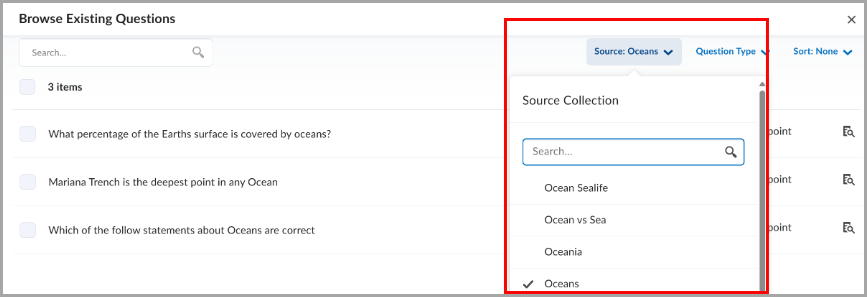
Figure: The Source dropdown with a search field in Question Library.
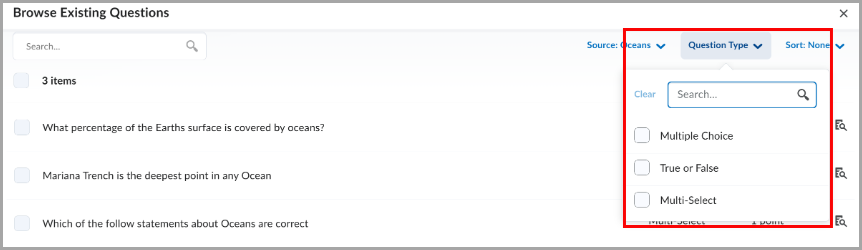
Figure: The filter dropdown with a search field in Question Library.
Technical Details
Impact:
- Slight impact to instructors due to improved usability when searching and selecting sources and filters in Question Library.
Availability:
- This feature is available to all clients.
To enable:
- This functionality is automatically enabled for all users.
- This functionality is not dependent on new or existing permissions or configuration variables.
Quizzes – Flag questions and strikethrough answer options | New
This release introduces the question annotation option in Quizzes. Learners can flag quiz questions to revisit later and apply strikethrough formatting to answer options to help narrow their choices.
Learners can select the bookmark icon  beside a quiz question to flag it for review. Flagged questions appear in the left navigation, allowing learners to quickly return to them.
Learners can also select the strikethrough icon  beside answer options to eliminate choices they believe are incorrect.

Figure: A flagged quiz question with an answer option shown in strikethrough.
Instructors can disable these tools for learners by selecting Hide question annotation tools in the Timing & Display section of the quiz edit page.
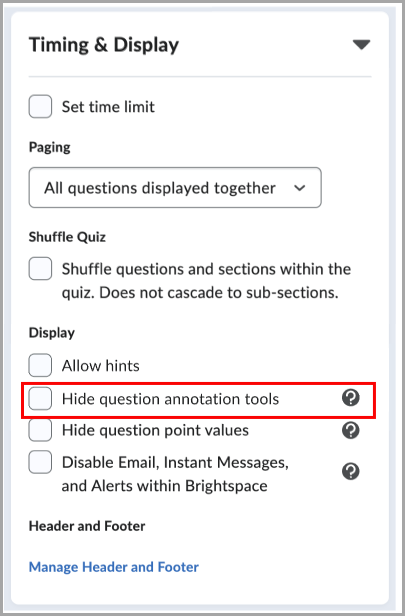
Figure: When creating or editing a quiz, in the Timing & Display section, select Hide question annotation tools to disable question flagging and answer option strikethrough for learners.
This feature implements the following PIE item:
- D7075 (Highlight, strikeout, and flag quiz questions and answer choices)
June 2026 Updates
Highlights include:
Update to the look of the Rubric icon

Learn more about the June 2026 updates here
May 2026 Updates
Highlights include:
When instructors enable the setting for "Automatic zero for submissions past the due date," students will see a message of "This activity is past due" in their Grades column for "Comments & Assessments."

Learn more here about the May 2026 D2L Updates
April 2026 Updates
Highlights include:
Quiz grading - filter by "incorrect questions"
When viewing a student's Quiz attempt, you can now filter for "incorrect questions" to view only the questions the student answered incorrectly.

Also: Quiz question "feedback" fields are condensed to save space, but will expand if needed as you add feedback.

View a short video demo of the April 2026 D2L updates
March 2026 Updates
Highlights include:
- In Classlist: A new Export button is available to instructors to optionally export Classlist details to a CSV file, making it easier to review the Classlist information offline.

- Tip! The export file will include student pronouns (if the student has entered them into Account Settings)
- In Awards: Instructors can now enter more detailed information in award text fields (name, description, criteria, and evidence) that support increased character limits.
- In D2L Brightspace (overall): The minimum supported browser versions have been updated.
February 2026 Updates
Highlights include:
What changed in "Enter Grades" on February 19th?
- The scrollbar on the bottom of your "Enter Grades" page no longer appears unless you scroll to the bottom of your list of students.
- In place of the scrollbar, navigation arrows were added in the upper corners, which will advance the page left or right.
- The arrows do not work as smoothly as the scrollbar, and are causing disruption to navigating the page.

Image above: Screenshot from Enter Grades page.

Until we hear back from D2L on fixing or improving this feature, try this tip (for mouse users):
- Hold down your "Shift" key on your computer keyboard.
- Use your computer mouse's roller wheel to roll up and down, which will move the columns left and right.
Highlights include:
- D2L Announcements that include images will transfer the images to the email version of the Announcement.
- Export Classlist to a CSV file
- This can be great for creating an Attendance list!

- Lock a Quiz to a single login session
- Increases Quiz security
- Prevents students from being able to share login info to a 3rd party
Highlights include:
- Assign zero points to a quiz question (such as, a survey-type question or academic honesty statement agreement)
Direct link to image
- Set a Due Date on Discussions, in addition to an End Date, which might be later.
- Use case for this feature:
- Set a "Due Date" for students to create an original thread.
- Set a later "End Date" for students to reply to classmates.
- You will now see if their first post was "late."
- CAVEAT: The first post could either be a thread or a reply. If you want to enforce that their first post is an original thread, select the option for "Learners must start a thread before they can view or reply to other threads ."
- Find this setting in the "Post & Completion" tile.
- Remember that if desired, you can still allow them to read all posts & replies after the End Date, even if they can no longer post or reply.
- M365 OneDrive Integration through "Existing Activities"
- In the Current (Classic) Content Experience, find this in the "Existing Activities" menu of any Content module.
- In the "New Content Experience", find this in the "Add Existing > More" menu
- Learn more about M365-D2L integration here.